

Telegram Setup
Bubblegram delivers visitor messages to a Telegram group. Each visitor gets a dedicated topic thread so conversations stay organized.
1. Create a Telegram group
- Open Telegram and tap the pencil icon (or “New Message”).
- Choose New Group.
- Optionally add members (you can add yourself from another account, or a teammate). You can also skip this and create the group alone.
- Give the group a name, then create it.
2. Enable Topics (Forum mode)
Topics allow each visitor to get their own thread inside the group. Without this, all messages arrive in one mixed stream.
On desktop
- Open the group and click Manage group.
- Go to Topics and enable it.
- Set the display to List. This makes it easier to scan and manage multiple visitor conversations.
On mobile
- Tap the group name at the top to open group info.
- Tap Group settings.
- Go to Topics and enable it.
- Select List as the display style.
Required. Topics must be enabled before linking. The bot creates a new topic for each visitor.
Unmute the group. Telegram mutes groups by default. Open the group, tap the bell icon, and select Unmute so you get notified when visitors send messages.
3. Add the bot
In the dashboard, open your project and click Link Telegram. This opens Telegram with the bot pre-selected and admin permissions pre-filled. Confirm. The bot joins, gets admin rights, and links your group automatically. No extra steps.
Token expires in 10 minutes. If the link expires, go back to the dashboard and click Link Telegram again to get a new one.
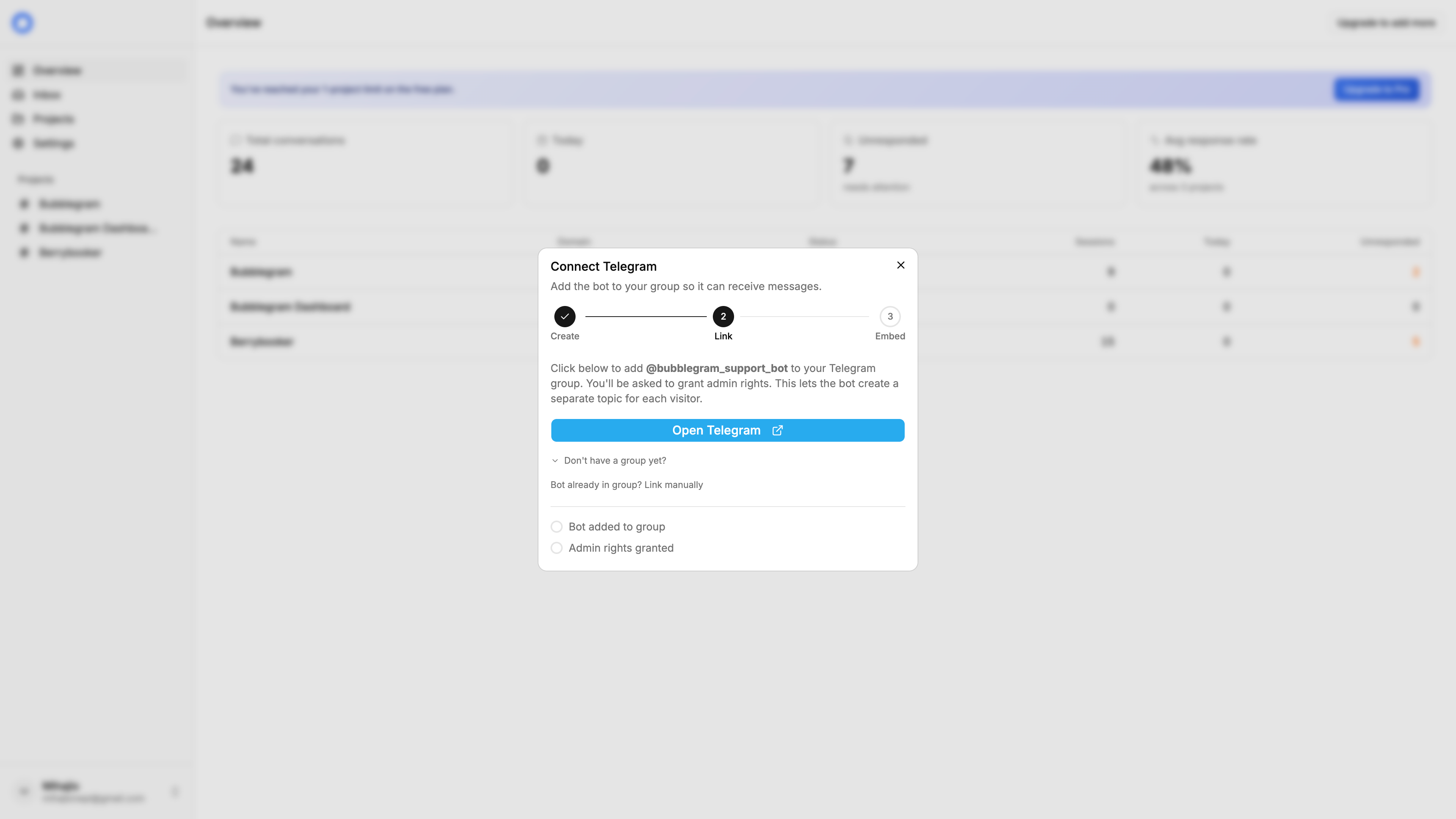
Already have the bot in the group?
If the bot was already a member before you started setup, the deep link won’t fire. Instead, copy the /start command from the dashboard and send it in the group manually:
/start YOUR_LINK_TOKENThe bot replies: “Project linked successfully.” Then promote it to admin. It needs permission to manage topics, post messages, and delete messages.